

Overview
Your app can send notifications to people’s phones on Android and iPhone: a new message, a booking reminder, an order update, or news you want everyone to see. Fastshot sends them through its own push service. Android needs nothing from you, and iPhone uses your Apple Developer account.Notifications come with a paid plan. On the Free plan, the Notifications tab says “Notifications come with a paid plan: Starter, Beginner or Pro.” and See plans shows the plans. If you ask the AI for notifications on the Free plan, it tells you they need a paid plan and doesn’t change your app.
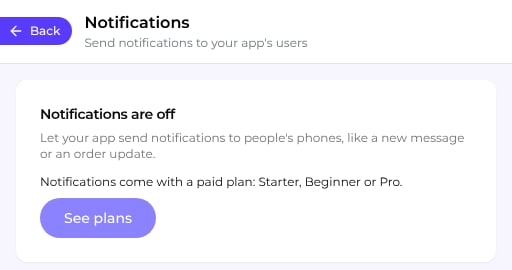
The Notifications tab on the Free plan
Adding notifications
Ask the AI for what you want, for example:- “Notify people when they get a new message”
- “Remind customers an hour before their booking”
- “Let me send news to everyone who uses the app”
Trying a test in the preview
When you send a test, it appears in the preview as a banner labelled Preview at the top of your app. Tapping it opens the screen the notification points to, the same as on a phone. The preview only simulates the notification: until you add a phone, the Notifications tab says “Reached no phone. It showed only in the preview.” A native Android app’s tests don’t show in the preview. They go to the phones you add.Getting them on your phone
Notifications reach your app only when it’s installed on a phone. Fastshot Companion and the preview on your phone don’t get them.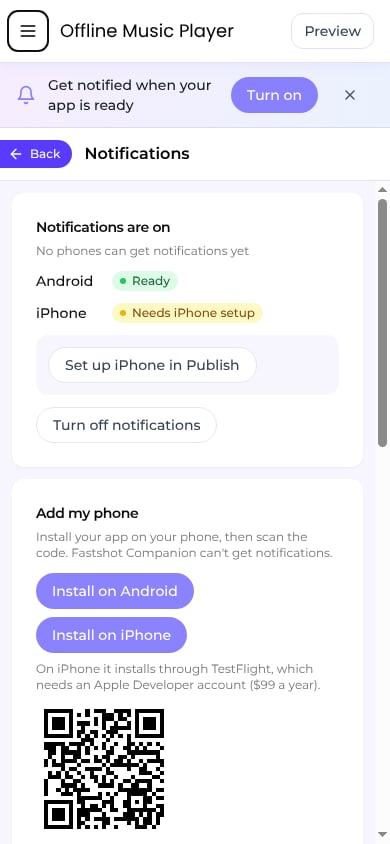
Notifications turned on, with Add my phone
1
Install your app
In the Notifications tab, under Add my phone, choose Install on Android or Install on iPhone:
- Android: Fastshot builds your app with its notifications. It usually takes about 7 minutes, and you can leave the tab. Then a code appears: scan it with your Android phone to install the newest build. If Android asks, allow your browser to install apps.
- iPhone: your app installs through TestFlight, which needs an Apple Developer account ($99 a year). Choose Connect Apple account, then Install with TestFlight. When it shows Ready in TestFlight, Apple emails you a TestFlight invitation: accept it, then scan the code with your iPhone to install the app.
2
Add your phone
Once Android or iPhone is ready, Add my phone shows a code. Point your phone’s camera at it: your app opens and asks to allow notifications, then says “This phone now gets your test notifications.” If you said no, turn notifications on for the app in your phone’s Settings and go back to the app to finish. A new code takes the place of one that runs out. If you’re using the editor on your phone, choose Add this phone instead of scanning.Your iPhone can be added without the code if your app has never been sent to App Review and only your own team has it in TestFlight, with no outside testers or public link. Then open the app and allow notifications, and it’s added on its own. If it isn’t, scan the code.
3
Send a test
Under Send a test, write a title and a message, choose the screen it opens under Opens, and choose Send to my phone. Tests go only to the phones you added. If a test doesn’t reach your phone, the tab says why and what to do next.
Messaging everyone
Under Message everyone, write a title and a message, and optionally the screen it opens. Choose Now or Later, check what will go out, then send. It goes to everyone who allowed notifications. People get notifications once they have a version of your app that includes them. If your app is already in the App Store or Google Play, publish an update after adding notifications.- Turn on This is an offer for promotions. Offers only reach people who said yes to offers in your app, as Apple requires.
- You can message everyone up to 3 times a day, scheduled messages included. The day starts over at midnight UTC, and the tab shows when that is in your time.
- A scheduled message can be cancelled under Recent until it goes out.
Notifications your app sends on its own
When your app has a Supabase backend, the AI can make it send notifications when something happens: a new message for the other people in a chat, an order or booking that changes, a reminder before an appointment. These show as Automatic under Recent. Without a backend, the AI prepares your app for them, and they start once a backend is connected.Recent and this month
Recent lists what was sent, with how many phones each one was sent to and how many people opened it. Sent means it left Fastshot for the phone: a phone that’s switched off, or where the app was force-stopped, gets it later or not at all. This month shows how many notifications you’ve sent out of your plan’s limit.iPhone and Android setup
- Android is set up for you.
- iPhone needs a push key in your Apple Developer account. Fastshot creates it once you’ve connected your Apple account, the same one you use to publish, and your app’s iPhone setup is done. Until then, the Notifications tab shows Connect your Apple account, or Set up iPhone in Publish while your app’s iPhone setup isn’t done. If you’d rather use your own key, choose Upload a push key and upload its .p8 file with its Key ID and Team ID.
Limits
Tests don’t count.